User Guide
Home
This page is intentionally blank.
Survey Status
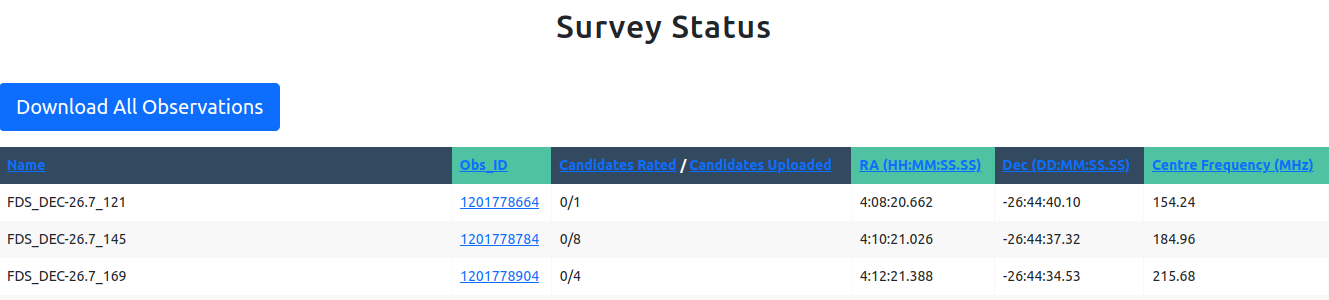
This page shows a table of all the observations that have been uploaded along with the number of candidates associated with each observation. Since observations are not associated with projects (see Session Settings), this page is an unfiltered view of all observations. The blue download button allows users to download all the observation data as a FITS table. The downloaded data contains all the fields associated with the observation model.
Candidate Table
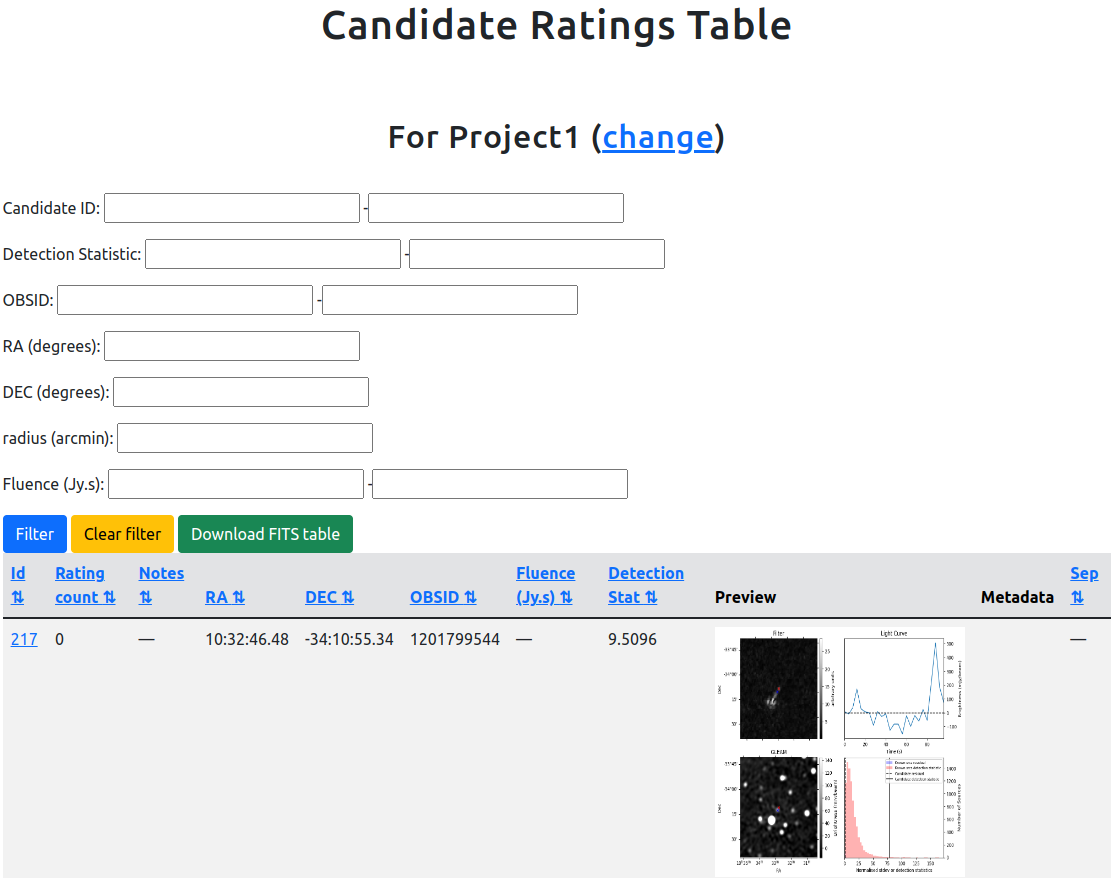
This page shows a table of all the candidates that belong to the currently selected project (see Session Settings). From here you can view the candidates, sort the table using the arrows next to the various column headers, filter the table using the form above the table or download the data using the green download button. The column titled Metadata will show a link when a candidate has metadata associated with it.
If you have not selected a project, or your selected project has no candidates, then you will see an empty table.
The download button will download only the data that matches the current filtering criteria. If you want all data from a given project, be sure to press the “clear filter” button and apply the filter before downloading.
Clicking on the candidate Id will take you to the corresponding candidate rating page.
Candidate Rating
This page is the core of the MWA Image Plane Transient Classifier app.
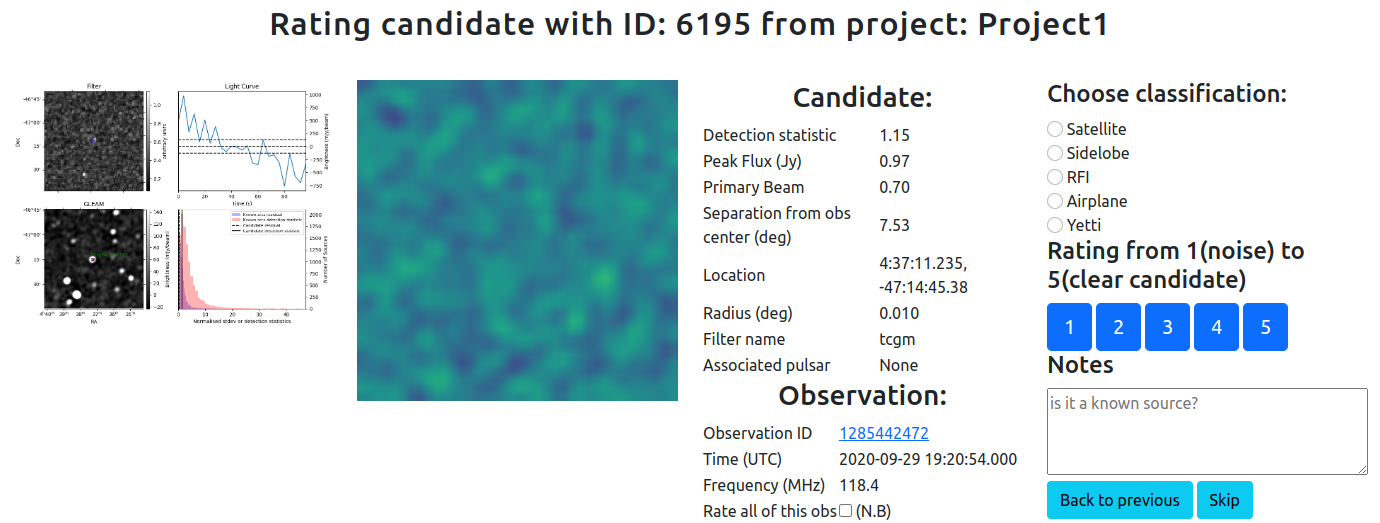
The primary purpose of this page is to give an expert user the ability to see a lot of relevant information about a given candidate so that they can provide a rating.
The ratings page allows users to apply a classification, a confidence rating, and some notes.
In the upper section of the page you’ll see the following panels:
A summary diagnostic image
An animation of the image location over time
Details on the
candidateincluding the associatedpulsar(if there is one)Details of the
observationfrom which thiscandidatecomesA
classificationpanel
To rate a candidate:
Choose a
classification(optional)Write/edit notes (optional)
Choose a confidence in your
rating(1-5)
Pressing one of the rating buttons will submit your rating and move on to another candidate within the same project.
The lower section of the page shows what other candidates, sources (from Simbad), and pulsars are nearby.
The default operation is to provide a search within 2 acrmin of the current candidate, however you can change this using the text box and pressing the search button.

The blue button titled “More within this project” will take you to the candidate table.
The Nearby candidates table shows all the candidates from the current project that are nearby.
Clicking on the blue ID will take you to the candidate ranking page for that candidate.
Selecting the checkbox next to the candidate will mean that whatever classification, rating and notes you apply to the current candidate will also be applied to the checked candidates from this table.
The Simbad table shows links to the nearby candidates.
The ATNF pulsars table shows all the pulsars that are near to this source.
Clicking on the green + button next to a pulsar will cause it to be associated with the current candidate.
Each candidate can have at most one pulsar association.
If a pulsar is already associated with the current candidate then you will instead see a red - button which, when pressed, undo the association.
Session Settings
When you are navigating the website not all of the data will be shown in all of the pages. The session settings page lets you control which subset of the data you’d like to see, and how. The following can be chosen:
Project:
All of the available projects are listed here.
You have to select a project before any candidates will be shown on other pages.
Candidate ordering:
This determines which candidate is selected when you go to the candidate rating page
Candidate filtering: ranking
TBC unclear what this is for or how it’s used.
Candidate filtering: observing frequency
The checkboxes here allow you exclude candidates which are observed at a given frequency.
You can select multiple frequencies.
Download Data
You can download filtered data from the candidate table page. The links on this page allow you to download an unfiltered table of data for:
Ratings
Candidates
Observations
Filters
Users
The tables are downloaded in FITS format.
Manage Tokens
When uploading data to the web app using the provided script, you will need an authentication token (instead of username and password). This page allows you to see your authentication token, and create one if you don’t have one.
Change Password
This page allows a user to reset their password.